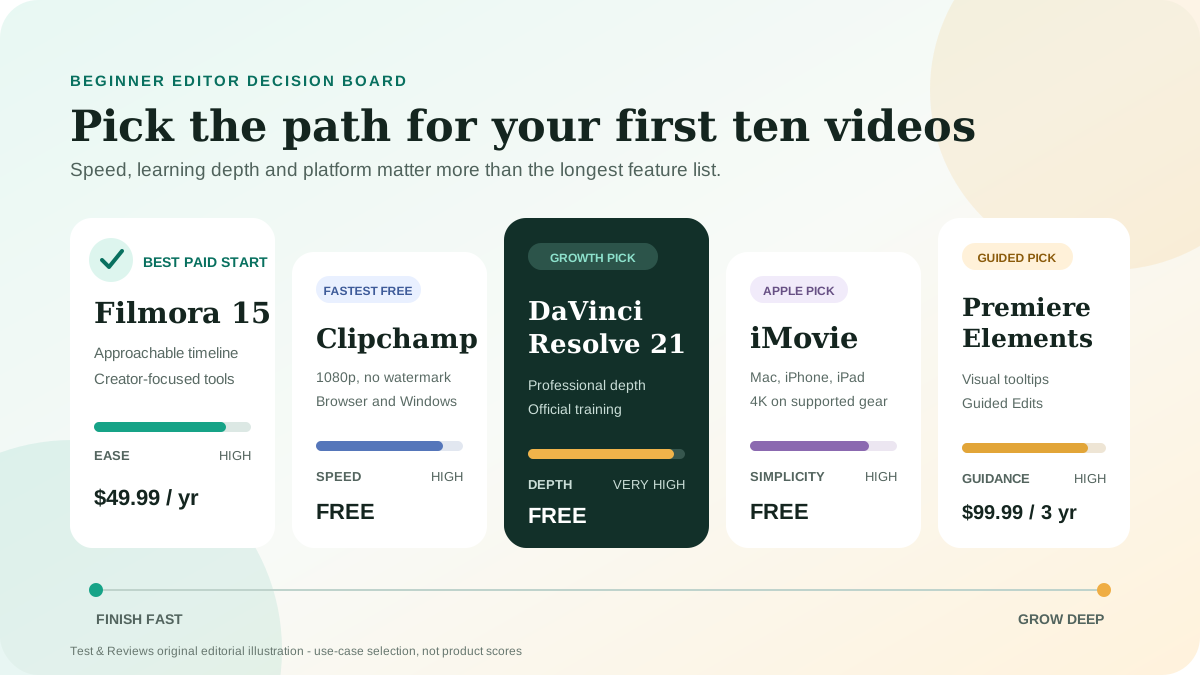
The best beginner video editor is the one that lets you finish your first ten videos without forcing you into the wrong long-term workflow. For most people who want a capable paid desktop editor, our first product to test is Wondershare Filmora 15. Clipchamp is the quickest free choice for simple 1080p videos, DaVinci Resolve 21 is the strongest free path for someone willing to learn, iMovie is the natural free starting point on Apple devices, and Premiere Elements 2026 offers the clearest step-by-step guidance.
This is a use-case shortlist, not a leaderboard built from feature counts. Test & Reviews has dated owner experience with Filmora 13, but we have not completed the same retained benchmark across all five current versions. Prices, export limits, platform support and license terms were checked against official sources on July 22, 2026. We explain the evidence level for every pick and do not publish invented scores.
Best beginner video editors: quick answer
| Best for | Our pick | Starting cost | Main limitation |
|---|---|---|---|
| Best paid starting point | Filmora 15 | $49.99/year Basic | AI credits, add-ons and version-limited perpetual updates |
| Fastest free editor | Microsoft Clipchamp | Free | 1080p free export; local files may need relinking |
| Best free editor to grow into | DaVinci Resolve 21 | Free | Steeper learning curve and higher system demands |
| Best for Apple beginners | Apple iMovie | Free on supported Apple devices | Apple only and limited room for advanced workflows |
| Best guided learning | Premiere Elements 2026 | $99.99 for three years | License expires after the three-year term |
Start here: make one 60-second video in the free version or trial of two editors. Import your own footage, cut mistakes, add a title, clean the audio and export. The editor that gets you to a result with the least confusion is usually a better first choice than the one with the longest feature list.
How we chose these editors
A beginner does not need every professional feature. A beginner needs a reliable path from raw footage to a finished video. We evaluated each candidate against seven practical questions:
- Can a new user understand the basic workflow? Import, arrange, trim, add audio and export should be discoverable.
- Can the free version or trial prove the workflow? A purchase should not be required before testing real media.
- What is the real cost? We include term length, watermarks, AI credits, premium assets and major-version limits.
- Will it run on the buyer's platform? Apple-only, browser-based and demanding desktop tools serve different users.
- Can the editor grow with the creator? Captions, audio, color, keyframes and project organization matter after the first videos.
- Can projects and media be recovered? Local files, backups, relinking and expiring licenses affect long-term access.
- Are publishing rights clear? Templates, stock, music and AI output can have separate commercial terms.
The site owner recorded in April 2024 that he tried multiple editors and chose Filmora because it felt straightforward while still offering layers, effects and useful automation. Only that Filmora experience is preserved as first-party experience. The other recommendations are current documentary selections awaiting the same retained cross-editor test.
1. Filmora 15: best paid editor for most beginners
Choose Filmora when you want a conventional desktop timeline without the initial complexity of a professional suite. It exposes familiar concepts - media bins, layered tracks, keyframes, titles, audio and export settings - while emphasizing presets, visible tools and in-app guidance.
The owner's Filmora 13 experience supports that core usability promise. In 2024, he found drag-and-drop editing, aspect-ratio changes, overlays and blending easier to understand than advanced alternatives. Filmora is now on version 15, so that experience does not prove current stability or performance, but it is a better foundation than a recommendation copied from another list.
Why it is our first paid editor to test
- Approachable editing model that still teaches transferable timeline skills.
- Captions, masking, tracking, multicamera, color, audio and social-video tools provide room to grow.
- Windows and macOS support.
- No-time-limit free version lets you build a real project before buying, although exports are watermarked.
- Annual and version-specific perpetual purchase options.
What to watch
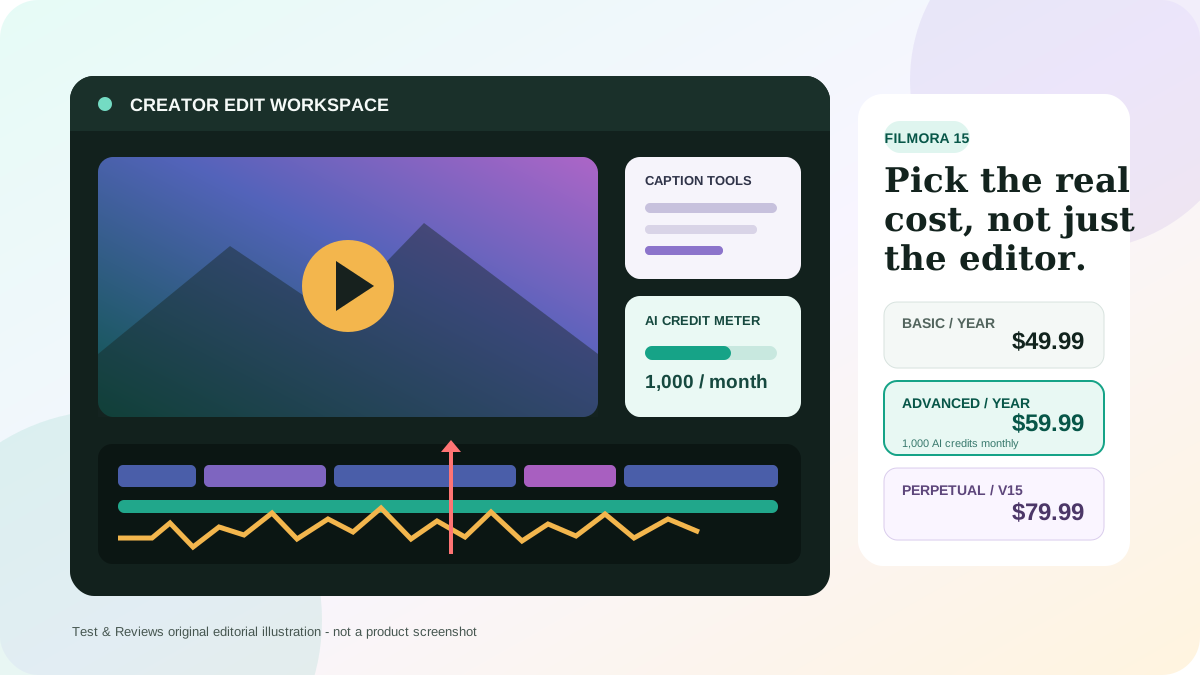
The current US storefront displays Basic at $49.99/year, Advanced at $59.99/year and a $79.99 perpetual option. The perpetual license covers Filmora 15 updates, not every future major version. Advanced includes 1,000 AI credits per month, while perpetual includes 1,000 credits once. Creative Assets is a separate subscription and can appear as an auto-renewing checkout trial.
Commercial creators must also verify individual music and asset rights. Read our full Wondershare Filmora review for the current plan, AI-credit and licensing details.
Visit Filmora pricing (direct non-affiliate link).
2. Microsoft Clipchamp: easiest free editor for quick videos
Choose Clipchamp when your goal is to produce a straightforward social video, presentation, tutorial or family edit with almost no setup. It runs in Edge or Chrome and is also the standard Windows video editor. The free personal tier includes core trimming, cropping, combining, fades, speed controls, templates and free stock.
Free exports reach 1080p and Clipchamp does not add a watermark. If a project uses premium stock or a premium-only feature, Clipchamp blocks export until the account is upgraded instead of adding a watermark. Microsoft 365 Personal and Family subscribers receive 4K export, brand kit and premium stock features.
Why it is the easiest free start
- No editor purchase is required for watermark-free 1080p export.
- Browser workflow avoids a large professional application install.
- Templates, screen/webcam recording, text and simple effects cover common first projects.
- Good fit for a Windows user who needs a finished video today.
The important storage limitation
Clipchamp personal projects normally process and reference media locally. The project record can exist in the account while the original video, audio and image files remain on the computer. If those files move, are deleted or leave the browser cache, the editor can ask you to locate them again. Content Backup is a paid feature.
Keep a dedicated source folder and do not rename or move it until the project and master export are archived. This is the difference between a convenient browser editor and a safe media-management workflow.
Open Clipchamp (direct non-affiliate link).
3. DaVinci Resolve 21: best free editor to grow into
Choose DaVinci Resolve when you are willing to spend more time learning in exchange for a very high ceiling. Resolve combines editing, color, Fusion visual effects and Fairlight audio on Windows, macOS and Linux. Blackmagic Design provides a free version and extensive official training material.
The free edition supports many 8-bit formats up to Ultra HD 3840 x 2160 at 60fps. Resolve Studio costs $295 and adds the Neural Engine, more effects, advanced noise reduction, text-based editing, Magic Mask and higher-end format support, including 10-bit video up to 120fps and resolutions beyond 4K.
Why it is not the easiest pick
Resolve presents several specialized pages and professional concepts. A beginner can ignore Fusion and advanced color work at first, but the interface, media management and hardware demands are still more substantial than Clipchamp or Filmora. It is the best choice here for someone who actively wants to learn editing as a long-term skill, not someone who only needs one quick video.
A sensible beginner path
- Use only the Media, Cut/Edit and Deliver pages for the first project.
- Follow Blackmagic's official beginner guide with its supplied lesson files.
- Learn proxies or optimized media before blaming playback on the editor.
- Add color and Fairlight audio skills after you can finish a basic edit reliably.
Download DaVinci Resolve (direct non-affiliate link).
4. Apple iMovie: best free choice for Apple beginners
Choose iMovie when you already own a supported Mac, iPhone or iPad and want a clean path into basic editing. It can trim and arrange clips, add titles, music and effects, work with picture-in-picture and green screen, and edit and share 4K video on supported hardware.
On iPhone and iPad, Magic Movie can assemble selected media automatically, while Storyboards guide the user through common formats such as product reviews and cooking videos with suggested shot lists. Projects can move from iPhone or iPad to a Mac for finishing, although version differences can occasionally affect project imports.
Why iMovie works
- No separate editor cost for supported Apple users.
- Simple interface with fewer purchasing and asset-credit distractions.
- Strong fit for personal videos and learning basic cutting, pacing and audio.
- Natural path toward Final Cut Pro if the creator outgrows it.
The limitation is also clear: it is Apple-only, and its titles, project organization, effect control and professional handoffs are narrower than Filmora, Resolve or Premiere. Choose it because it already solves your project, not because it has the most features.
View iMovie (direct non-affiliate link).
5. Premiere Elements 2026: best guided learning
Choose Premiere Elements when you want the application to teach while you edit. Adobe's Guided Edits, visual tooltips, Organizer and automatic tools are designed for people without prior editing experience. The editor includes trimming, social resizing, motion titles, object selections, color corrections, noise reduction and automated reframing.
Premiere Elements 2026 costs $99.99 and includes a seven-day trial without requiring a credit card. The important change is its license: the one-time payment grants a three-year term. It does not renew, and the application becomes inaccessible after the term expires, although Adobe says the media catalog remains available in Elements Organizer.
Who should choose it
- A learner who benefits from explicit step-by-step edits and visual hints.
- A family archivist who values the Organizer alongside the editor.
- A Windows or Mac user who wants a contained consumer product rather than Adobe Premiere's annual subscription.
It is less attractive if you expect a permanent license or want to grow into professional collaborative Premiere projects. Premiere Elements and Adobe Premiere are distinct products. See our Adobe Premiere review before assuming one is a direct upgrade path for project files and workflows.
Try Premiere Elements (direct non-affiliate link).
Side-by-side comparison
| Editor | Platforms | Free proof | Paid model | Growth ceiling |
|---|---|---|---|---|
| Filmora 15 | Windows, macOS | No time limit; watermarked export | Annual or version-15 perpetual | High for solo creator work |
| Clipchamp | Browser, Windows, iOS | 1080p without watermark using free assets | Microsoft 365 or Premium for more | Low to medium |
| DaVinci Resolve 21 | Windows, macOS, Linux | Very capable free edition | Studio $295 | Very high |
| iMovie | macOS, iPhone, iPad | Free on supported Apple devices | No editor subscription | Low to medium |
| Premiere Elements 2026 | Windows 11, modern macOS | Seven-day full trial | $99.99 for three years | Medium for consumer projects |
Which editor should you choose?
I want the easiest free option
Start with Clipchamp. Use your own or free media and export at 1080p.
I want a paid editor I can learn quickly
Test Filmora first, then compare the real annual, perpetual, AI and asset cost.
I want professional skills without paying
Choose DaVinci Resolve and commit to the official beginner training.
I already use Apple devices
Finish a project in iMovie before buying anything else.
I learn best with instructions inside the app
Use the Premiere Elements trial and complete two Guided Edits.
I need client or team workflows
These beginner picks may be too narrow; compare Adobe Premiere, Resolve Studio and the client's required handoff format.
Buying mistakes beginners should avoid
Paying before testing an export
Import the same phone or camera file you will use later. Verify playback, captions, audio, aspect ratio and export. A beautiful demo project does not prove your codec or computer will behave the same way.
Confusing a watermark-free export with a free professional workflow
Clipchamp's free 1080p export is excellent for simple work, but backup and premium assets can change the workflow. Resolve is far deeper but demands more learning and hardware. “Free” describes price, not effort.
Misreading “perpetual” or “one-time”
Filmora perpetual covers version 15. Premiere Elements is a one-time payment for three years and then stops working. Always identify the supported major version and term before comparing prices.
Ignoring music and stock rights
Check whether an asset is cleared for personal videos, monetized channels, client work and advertising. Save the license and invoice when downloading commercial media.
Moving source files
An editor project usually references original media; it does not magically contain every source file. Keep a stable project folder, preserve originals and archive the final master export.
A ten-video learning plan
- Trim one 30-second phone clip.
- Add a clean title and export 1080p.
- Mix voice and background music.
- Correct exposure and white balance.
- Add captions and review their accuracy.
- Create both landscape and vertical versions.
- Use keyframes for one controlled animation.
- Organize a project with folders, names and backups.
- Edit a five-minute story from mixed footage.
- Reopen the archived project and verify every media link.
Do not switch editors during these ten projects unless the current tool blocks a real requirement. Repetition teaches editing faster than repeatedly learning new interfaces.
How we will test the shortlist
A future scored version of this guide requires the same source package and result from every editor:
- Record current app, operating system, hardware and driver versions.
- Use identical phone HEVC, screen capture, camera video, stills and external audio.
- Ask a new editor to complete import, trim, title, audio and 1080p export without coaching.
- Measure time to first export and count blocking errors or help searches.
- Create a ten-minute captioned 4K project in landscape and vertical ratios.
- Log playback, proxy, render, export, crash, recovery and relink behavior.
- Record every paywall, watermark, credit deduction and premium asset warning.
- Archive the project and reopen it on a second supported computer where possible.
- Verify commercial rights for every included asset.
- Contact support with the same technical question and retain the response.
Final recommendation
Most beginners who want to pay for a capable desktop editor should test Filmora first. The site owner's dated experience supports its approachable workflow, and Filmora 15 has enough depth to outlast the first projects. Read the plan and asset terms before buying.
Do not pay if a free editor already solves the job. Clipchamp is the fastest route to a clean 1080p result. iMovie is the sensible Apple starting point. DaVinci Resolve is the strongest free investment for someone willing to learn. Premiere Elements earns its place when guided instruction matters more than permanent ownership.
Frequently asked questions
What is the easiest free video editor for beginners?
Clipchamp is our simplest current free choice for a Windows or browser user because it exports up to 1080p without a watermark when the project uses free features and assets. Apple users should try iMovie first.
What is the best free editor for learning professional skills?
DaVinci Resolve 21 has the highest ceiling among these free options. It also has the steepest learning curve, so use Blackmagic Design's official training instead of trying every page at once.
Is Filmora better than DaVinci Resolve for a beginner?
Filmora is generally easier to approach and better suited to fast creator projects. Resolve is more demanding but offers a stronger free tier and deeper professional tools. The correct choice depends on whether speed or long-term skill depth matters more.
Is Premiere Elements a lifetime purchase?
No. Premiere Elements 2026 costs $99.99 for a three-year, non-renewing term. Adobe says the editor becomes inaccessible when that term ends.
Can I edit 4K video for free?
DaVinci Resolve's free version supports Ultra HD up to 60fps for supported 8-bit formats, and iMovie supports 4K on compatible Apple hardware. Clipchamp requires a paid or qualifying Microsoft 365 plan for 4K export.
Do I need a powerful computer?
It depends on the footage and editor. 4K, HEVC, effects and noise reduction can be demanding in any app. Test a real project, keep storage free and learn proxy or optimized-media workflows before buying new hardware.
Sources and update record
Facts and US prices checked July 22, 2026. Primary sources include Filmora plans, Microsoft's Clipchamp plans, Clipchamp watermark rules, DaVinci Resolve 21, Apple iMovie, and Premiere Elements 2026. TechRadar's 2026 beginner-editor comparison was used as independent evaluation context; its rankings and scores are not represented as ours.